Organizing Streaming Device Information in a Home Office Desk Environment
October 26, 2026 · 13 min read
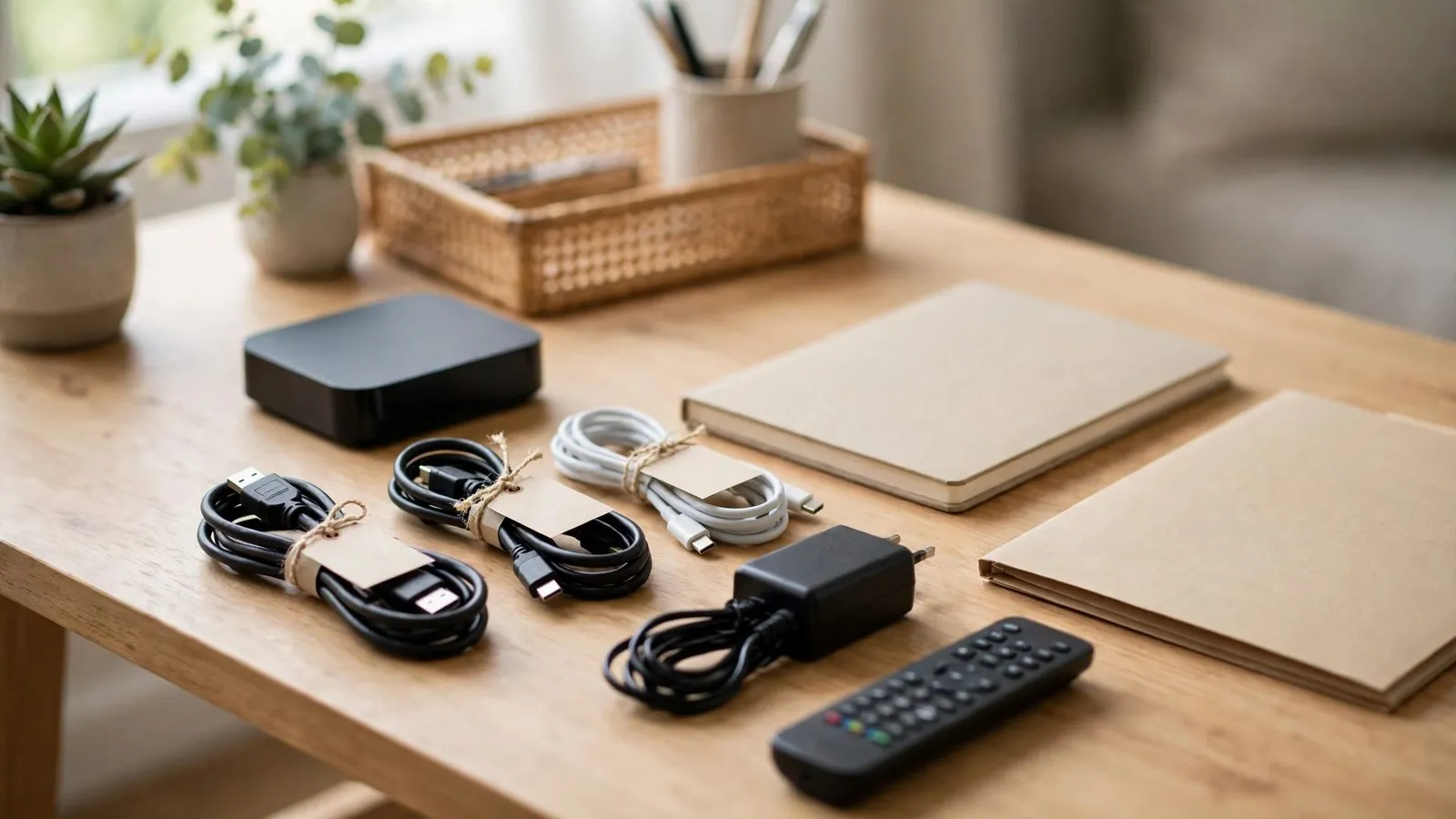
Managing a personal home office desk that incorporates streaming players, auxiliary displays, and media hubs requires thoughtful physical organization and disciplined recordkeeping. When media hardware shares desk space with a primary workstation, cables, power bricks, and technical parameters quickly accumulate into disorder. Without a structured tracking system, simple tasks like identifying an unplugged power brick, reconnecting a display cord, or verifying device specifications become tedious and frustrating.
Organizing entertainment device information does not involve complicated network tampering, router modifications, or external service diagnostics. Instead, it relies on straightforward administrative discipline: cataloging hardware models, labeling cables at both ends, documenting electrical ratings, and recording operational settings with strict privacy controls. An orderly physical workspace and a methodical offline register help keep your desk setup tidy, secure, and easier to maintain.
Building a Central Hardware Inventory for Desk Devices
A dependable setup begins with a central hardware register for all media equipment in your workspace. Instead of crawling beneath a desk to read tiny serial stickers, record key specifications in a single accessible index:
• Standardized Identifier: Assign a short internal label (such as DESK-STRM-01 or AUX-DISP-02) to distinguish each device from general household hardware.
• Make and Exact Model: Note the manufacturer and exact sub-model string from the casing sticker. Hardware revisions within the same model often feature different components.
• Hardware Revision and Firmware Baseline: Document the factory revision number and the initial operating system release.
• Physical MAC Address (Optional): If printed on the chassis label or listed in system settings, note the Ethernet or Wi-Fi MAC address only when needed for local router management. Record only necessary network identifiers, keeping them in a private register rather than shared notes.
• Desk Location: Specify where the hardware resides (for example, monitor riser shelf or under-desk caddy) to streamline physical inspections.
Maintaining this baseline register reduces the need to handle delicate connectors and provides accessible hardware details during desk adjustments.
Physical Port Mapping and Cable Identification Standards
The space behind a multi-device desk easily becomes a tangle of indistinguishable cords. When identical black HDMI, USB, and audio cables run through shared grommets, tracing connections is slow and cumbersome. A dual-ended labeling convention significantly reduces this confusion.
Follow a strict two-point rule: every cable connecting a media player to a screen, switch, or audio device must carry a matching tag at both ends. Self-laminating cable flags, color-coded hook-and-loop straps, or clip-on tags help avoid the sticky residue commonly left by standard adhesive tape.
Your physical port log should document the following details:
• Source Output to Destination Input: Note precisely which output connects to which input (such as DESK-STRM-01: HDMI-OUT connecting to SWITCH-01: HDMI-IN-2).
• Cable Specification Categories: Record specific cable ratings, distinguishing standard HDMI from high-speed HDMI or video-enabled USB-C cords. Not all cables sharing identical connectors deliver the same capabilities.
• Port Characteristics: Document individual port features on displays and switchers, such as dedicated refresh capabilities, Audio Return Channel (ARC) support, or power delivery limits.
Clear port records save time whenever you clean your desk or swap hardware.
Power Supply, Voltage, and Adapter Recordkeeping
Mismatched power supplies represent a frequent hazard when operating multiple compact electronic devices side by side. Many streaming boxes, mini-switches, and audio splitters use external barrel-jack adapters with identical physical plugs. Connecting a 12-volt adapter to a 5-volt unit can permanently destroy delicate circuitry, while inadequate amperage causes unexpected reboots.
Prevent adapter mix-ups by implementing an electrical tracking protocol:
• Power Supply Specification Logging: Transcribe the voltage (V), amperage (A), and barrel plug polarity from the original power brick into your equipment log. Note that matching label ratings and barrel plug sizes is not sufficient proof of third-party compatibility; always use the original or manufacturer-approved adapter matching complete specifications rather than interchanging power bricks.
• Paired Identification Tags: Place matching colored or numbered stickers on both the power adapter casing and the corresponding device input socket. If an adapter is unplugged, its destination remains immediately clear.
• Surge Strip Outlet Indexing: Note which outlet on your surge protector powers each device to simplify power cord tracing. Avoid using outlet switches as an unprompted forced reboot; always perform a standard software shutdown per the manufacturer manual first, ensuring no firmware updates or disk writes are interrupted.
Consistent electrical documentation helps prevent hardware mix-ups and simplifies under-desk cable management.
Display Signal Routing and Video Input Management
Home office workstations often balance primary work monitors with secondary media screens or shared multi-input displays. When several video sources share a screen through an external switcher or monitor inputs, tracking signal routes helps avoid confusion and troubleshoot blank-screen issues.
Document each stage of your display pathway:
• Switcher Input Assignments: If using a physical HDMI switcher to share a desktop screen between a work computer and media players, maintain an index card showing which button or port number corresponds to which player.
• Display Input Profiles: Computer monitors frequently save unique color, brightness, or scaling profiles per input. Record the configured preset name for each connected device based on supported display presets in your monitor manual, noting custom adjustments in case a factory reset clears user preferences.
• Audio Routing Paths: Note whether sound travels directly through monitor speakers, routes via optical TOSLink to a desktop soundbar, or outputs to a headphone amplifier.
Keeping a concise input card near your monitor stand lets you switch between devices seamlessly without guessing input numbers.
Secure Administrative Recordkeeping and Credential Redaction
While having technical specifications accessible is essential for desk maintenance, personal registers must uphold strict privacy boundaries. A desk notebook or local document should serve as an administrative inventory, never as an unencrypted repository for security credentials.
Maintain clear administrative boundaries between non-sensitive technical data and confidential authentication secrets:
• Operational Network Data: Document only minimal necessary internal details, such as local IP reservations, device hostnames, and firmware build numbers, strictly in a restricted private master inventory. Because internal network identifiers reveal your home network context, never post them on public or guest-accessible quickcards.
• Mandatory Masking in Human-Readable Notes: When recording profile references or configuration endpoints in desk notes, always mask sensitive authentication tokens (for example, user-stream-*masked* or https://local-node.internal/cfg?token=[REDACTED]). For digital exports, verify redactions are flattened and permanent rather than reversible visual overlays. Never edit or redact machine-readable configuration backups: keep system backup files intact, separate, and privately secured.
• Strictly Prohibited Items: Never write passwords, PIN codes, master keys, or private access URLs in plain text on physical notes, desk labels, or unencrypted files.
• Encrypted Separation: Store all actual authentication credentials exclusively in a dedicated, encrypted offline password manager.
This separation significantly reduces the risk that desk notes or unencrypted local documents inadvertently expose private credentials.
Workspace Ventilation, Cable Ergonomics, and Routine Audits
Physical maintenance goes hand in hand with administrative tracking. Compact media players generate noticeable heat within small enclosures, making thermal airflow and cable stress vital operational considerations.
Incorporate these practical habits into your workspace routine:
• Thermal Clearance: Verify that media players installed on shelves, behind monitors, or in under-desk brackets have unobstructed airflow matching the clearances in their manufacturer manuals. Use only compatible, manufacturer-rated mounting accessories rather than assuming any VESA bracket is suitable, and avoid stacking hardware.
• Cable Strain Relief: Never bend HDMI or optical cords at sharp right angles. Use loose Velcro ties to maintain gentle bend radii and prevent tension on delicate internal wires and ports.
• Periodic Desk Inspections: Visually inspect accessible cabling and device surfaces while equipment is powered down and safely disconnected according to manufacturer instructions. Avoid using household vacuums directly on device vents, as static electricity and forced airflow can damage internal components. Never open device casings, touch hot components, or manipulate live power connectors.
• Decommissioning Protocol: When retiring hardware, consult your inventory to locate matching original accessories and cords. Perform a local factory reset per the manufacturer manual, and separately sign in to your provider accounts online to revoke active device sessions and unlink services, as a local reset does not reliably terminate remote account authorizations.
Actionable Equipment Cataloging Checklist
Use this straightforward checklist whenever you add or rearrange media equipment on your home office desk:
• Phase 1: Baseline Hardware Inspection
• Record make, exact model number, and serial number in your master register.
• Document MAC addresses only if needed and accessible from the label or network settings.
• Verify that the power supply is the original or manufacturer-approved adapter matching all specifications, rather than relying solely on plug dimensions or label markings.
• Phase 2: Physical Labeling and Installation
• Place matching identifier stickers on the power adapter and device power socket.
• Attach dual-ended identification flags to both ends of every video and audio cable.
• Position the unit using compatible, manufacturer-rated accessories with ventilation space conforming to the device manual.
• Fasten cables loosely with Velcro wraps, preserving gentle bend radii.
• Phase 3: Configuration and Security Verification
• Document the assigned display input, switcher port, and monitor preset.
• Record internal network hostnames and local IP reservations.
• Ensure all account names, profile tokens, and identifiers are masked or redacted.
• Verify that no passwords, PINs, or master keys are stored on desk paperwork.
Comparative Evaluation of Personal Documentation Methods
Selecting an appropriate medium for your desk records depends on how you balance convenience, update effort, and privacy. The table below evaluates three common personal recordkeeping formats:
Documentation Method: Physical Desk Logbook / Cards · Maintenance Effort: Low: Easy to annotate immediately while adjusting hardware. · Accessibility at Desk: High: Instantly readable at the desk without turning on a computer. · Security & Privacy Level: Moderate: Subject to visual inspection; requires strict redaction of identifiers. · Recommended Workspace Role: Quick-reference port maps, switcher lists, and initial unboxing notes.
Documentation Method: Local Plaintext Markdown File · Maintenance Effort: Low: Fast to search, edit, and back up using standard text editors. · Accessibility at Desk: High: Readily available across local drives without network reliance. · Security & Privacy Level: Moderate: Protected from cloud exposure when stored strictly offline, but lacks file-level encryption. · Recommended Workspace Role: Master hardware catalogs, cable specification logs, and port inventories.
Documentation Method: Encrypted Offline Database / Sheet · Maintenance Effort: Moderate: Requires opening specialized software and unlocking a master key. · Accessibility at Desk: Moderate: Accessible only on devices equipped with decryption tools. · Security & Privacy Level: High: Strong local cryptographic protection against unauthorized reading when secured by a robust master key. · Recommended Workspace Role: Sensitive hardware registers that link equipment inventories with masked profile tags.
A practical desk workflow often combines a non-sensitive physical index card for instant switcher mapping with an offline text file or encrypted database for comprehensive hardware details.
Hypothetical Desk Scenarios and Redaction Templates
To demonstrate how to document desk hardware while preserving strict privacy, consider these two clearly hypothetical setups:
Hypothetical Scenario A: Dual-Display Desk with Secondary Media Box
In this hypothetical home office workspace, a user pairs a primary work laptop with an auxiliary streaming player connected to a secondary display for break-time viewing.
The user logs the setup in an offline text file as follows:
• Device Code: DESK-STRM-01
• Hardware Unit: Model StreamUnit-H2 (Hardware Rev. 1.2)
• Mounting Position: Attached via manufacturer-approved bracket to the rear VESA mount of Monitor 2, maintaining manual-specified clearance
• Power Supply Record: Original manufacturer-supplied adapter, 5.0V == 2.0A, Center-Positive Barrel Plug (Tag: PWR-STRM-01)
• Signal Route: DESK-STRM-01: HDMI-OUT -> Monitor 2: HDMI-IN-2 (High-Speed HDMI 2.0m, Tag: CB-VID-01)
• Audio Path: Monitor internal pass-through to desktop powered speakers via 3.5mm AUX
• Network Identifier: Local hostname desk-box.local (Hardware MAC: 00:1A:2B:3C::)
• Administrative Record: Profile logged as user_desk_*redacted*; configuration string recorded as https://internal.local/setup?token=[REDACTED]. Master account passwords and PINs are excluded entirely and stored in an encrypted password manager.
Hypothetical Scenario B: Three-Device Setup with External HDMI Switcher
In this second hypothetical setup, a user routes a workstation computer, a media box, and an auxiliary test player into a single desktop monitor through an external four-port HDMI switch.
The physical desk index card lists:
• Switcher Unit: SW-4K-01 (4-port HDMI selector)
• Port 1: PC-WRK-01 (Workstation DisplayPort-to-HDMI adapter)
• Port 2: STRM-DEV-02 (Auxiliary media player, Cable Tag: CB-VID-02)
• Port 3: TEST-BOX-03 (Bench test player, Cable Tag: CB-VID-03)
• Port 4: [UNASSIGNED]
• Output Route: SW-4K-01: OUT -> Main-Monitor: HDMI-1
• Power Distribution: Surge Strip 2, outlets 1 through 4 labeled for cord tracing (power switching not used as an abrupt forced reboot).
• Configuration String: Test profile logged as test-stream-*masked* with endpoint https://config.local/api?node=[TOKEN_REDACTED]. Plain text credentials and secret keys are excluded from the desk card, while machine-readable configuration files remain intact in private storage.
Summary and Operational Best Practices
Keeping entertainment and streaming hardware organized in a home office desk setting requires no specialized network modifications or complex technical procedures. By cataloging device specifications, tagging cables at both ends, documenting electrical ratings accurately, and redacting sensitive account information, you help protect your electronics and keep your workspace organized. Establishing these straightforward administrative habits supports a tidy, well-documented, and manageable personal setup over the long term.
Ready to get set up?
Frequently asked questions
How often should I update my desk hardware records?
Review your records periodically or whenever you add, remove, or swap equipment. A brief inspection helps keep cable changes and hardware updates documented while fresh in your mind.
Is it safe to write down local IP and MAC addresses in a desk notebook?
Internal IP and MAC addresses reveal details about your private local network structure. While maintaining a private master hardware register carries low risk within a secure home office, these identifiers should not be placed on public or shared desk cards. Only record what is practically necessary for device management, and never store passwords alongside network details.
What is the best way to label cables without leaving gummy residue?
Use dedicated self-laminating cable flags, hook-and-loop Velcro markers, or clip-on plastic rings. Standard masking tape or packaging tape tends to degrade, peel, and leave adhesive residue on cable jackets over time.
Why is it dangerous to swap power adapters between devices even if the plug fits?
Many electronic accessories use identical barrel connectors but operate on different electrical parameters. Connecting an incorrect voltage or reverse-polarity supply can permanently destroy internal circuitry. Furthermore, matching printed voltage, amperage, and barrel size alone does not establish compatibility; always use the original or manufacturer-approved adapter matching the complete electrical specification.
How should configuration strings or streaming endpoints be documented?
In human-readable notes, mask sensitive tokens with visible placeholders such as [TOKEN_REDACTED] or *masked*, and ensure digital exports use permanent redaction rather than reversible visual overlays. Conversely, never redact or hand-edit machine-readable system backup files; store those intact in secure, private storage.