Monster IPTV on Mobile: Android & iPhone Guide 2026
August 15, 2026 · 8 min read
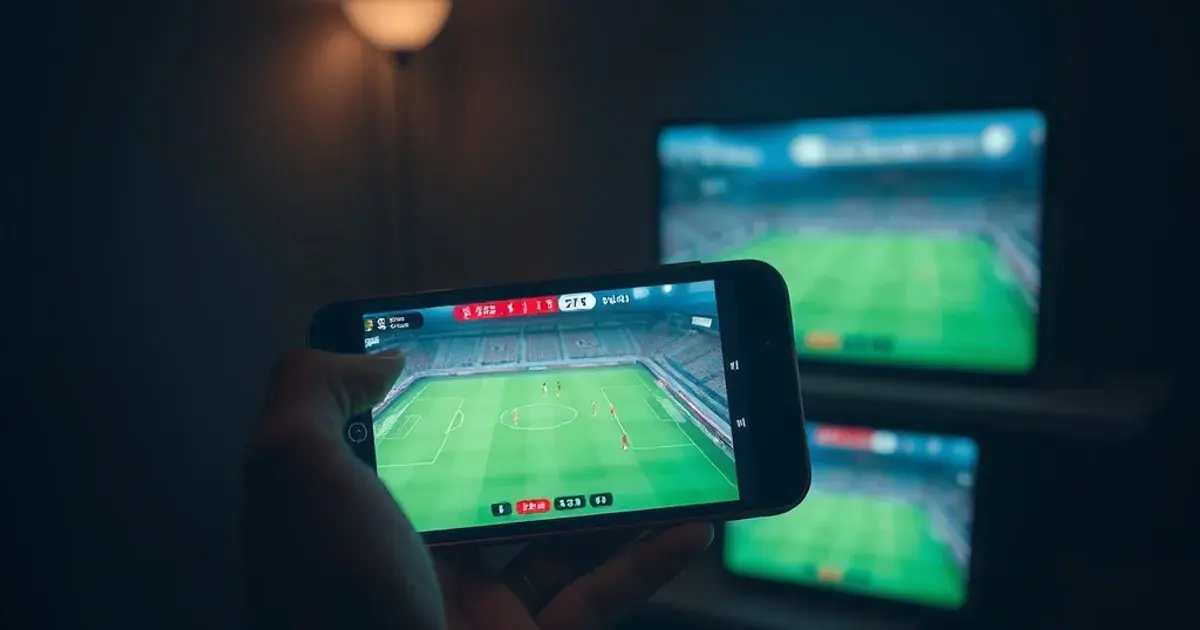
Most IPTV viewing in 2026 no longer happens on a living-room screen. Industry estimates put mobile IPTV usage above 60% of total viewing time, driven by commuters catching kickoff on the train and fans checking a second match on their phone while the TV plays another. With the Champions League 2026-27 group stage kicking off October 15 and the Europa League following close behind, portable access to Monster IPTV stops being a nice-to-have and becomes the difference between watching a goal live and reading about it on social media ten minutes later.
Monster IPTV already has solid device guides for Firestick and Apple TV 4K, but nothing dedicated to the screen most people actually carry with them all day. This guide closes that gap: which apps to install on Android and iOS, how to configure your Xtream or M3U login correctly the first time, what mobile-specific buffering issues look like and how to fix them, and a pre-kickoff checklist so a bad connection doesn't cost you the opening goal.
Everything below assumes you already have Monster IPTV credentials. If you don't yet, the fastest way to get set up is a quick conversation — details at the end of this guide.
Why Mobile Matters for IPTV in 2026
The shift to mobile isn't just about convenience — it changes how people plan their viewing. A fan who used to schedule their evening around a TV now expects to start a match on the bus, pause it (or switch to live) when they get home, and finish it on a tablet in bed. IPTV, unlike traditional satellite or cable, is naturally suited to this because the stream lives on a server, not a fixed box.
Sports is the biggest driver. Champions League and Europa League fixtures often overlap with work or commute hours in the UK, and Premier League weekend rotations regularly clash with family plans. A phone with a properly configured IPTV app turns any of those moments into a viewing option instead of a missed match.
The catch is that mobile networks and small screens introduce problems TV setups don't have: variable 4G/5G bandwidth, aggressive battery-saving that kills background streams, and screen sizes where a cluttered EPG becomes unusable. The sections below deal with each of these directly rather than treating mobile as "the same setup, smaller screen."
Not sure which app fits your phone? Ask us before you install anything.
Best IPTV Apps for Monster IPTV on Android
Three apps cover almost every Android use case for Monster IPTV. IPTV Smarters Pro is the most beginner-friendly — it has a native Xtream Codes login screen, a clean grid EPG, and catch-up support if your Monster package includes it. It's the app we recommend for anyone setting up for the first time.
GSE Smart IPTV is the power-user option. It supports M3U, Xtream, and multiple playlist formats simultaneously, plus more granular player settings (buffer size, hardware vs. software decoding) that matter on older or budget Android phones. If IPTV Smarters Pro stutters on your device, GSE is usually the fix.
OTT Navigator sits in between: strong EPG customization and multi-screen layouts, useful if you like keeping an eye on two matches at once, but the interface has a steeper learning curve than the other two. All three are free on the Play Store and work fine with Monster IPTV's Xtream Codes API — none require sideloading or third-party APK sources.
Best IPTV Apps for Monster IPTV on iPhone and iPad
Apple's App Store review policies mean fewer dedicated IPTV apps exist for iOS compared to Android, but the options that do exist work reliably with Monster IPTV. GSE Smart IPTV has an iOS version with feature parity close to its Android counterpart, and it's the most consistent choice for Xtream Codes logins on iPhone.
IPTV Smarters Player (the iOS build) is the other mainstream option, with a similar interface to its Android sibling, making it the easiest pick if you're switching between an Android phone and an iPad.
A limitation worth knowing upfront: iOS is stricter about background streaming than Android, so switching apps mid-match can interrupt playback more often. AirPlay is the workaround for the living room — casting from your iPhone to an Apple TV 4K keeps the big-screen experience without needing a second setup. If you already have Monster IPTV running on Apple TV 4K, see the dedicated setup guide for that device.
Android Setup: Step by Step
Install IPTV Smarters Pro (or GSE Smart IPTV) from the Play Store. On first launch, choose "Login with Xtream Codes API" rather than the M3U URL option — it's more reliable for EPG data and reconnects faster after a dropped connection.
Enter your Monster IPTV server URL, username, and password exactly as provided — these are case-sensitive and a stray space is the single most common setup failure. After login, let the app fully sync the channel list and EPG before opening a stream; interrupting the first sync often produces a partial or missing guide.
Once synced, use the app's category filters to move sports and your regular channels to favorites — on a phone screen, a flat list of hundreds of channels is far harder to navigate than on a TV remote, so favorites matter more here than on any other device.
iPhone and iPad Setup: Step by Step
Download GSE Smart IPTV or IPTV Smarters Player from the App Store using your Apple ID. Open the app and select the Xtream Codes login method, then enter your Monster IPTV credentials the same way as on Android.
iOS handles background audio and picture-in-picture differently from Android, so enable picture-in-picture in the app's settings if you want to keep a match playing while checking messages or another app — not every IPTV app supports this, so check before matchday.
For screen mirroring, use Control Center's Screen Mirroring option to cast to an Apple TV 4K, or AirPlay directly from within apps that support it. This is a good middle ground when you're setting up quickly at a friend's house and don't want to touch their Apple TV configuration directly.
Mobile Bandwidth, Network, and Buffering
Mobile buffering is rarely about Monster IPTV's servers — it's almost always local network variability. 4G and 5G signal strength fluctuates as you move, and phones aggressively throttle background data to save battery, both of which can interrupt a stream that would run fine on WiFi.
For HD streams on mobile data, a stable 4G connection is usually enough; 4K streams need 5G or WiFi to avoid stutter. If you're watching over WiFi at home and still buffering, check whether other devices are saturating the connection — a 4K TV stream elsewhere in the house competing with your phone is a common, overlooked cause.
If buffering persists regardless of connection type, a VPN can sometimes help by avoiding ISP-side traffic shaping that specifically targets streaming traffic — this is covered in more depth in our dedicated VPN and buffering guide, which applies to mobile just as much as it does to TV boxes.
Matchday Setup Checklist
Before kickoff, do three things: confirm your app's EPG has synced today's fixture list (a stale EPG is the most common reason people think a channel is "down" when it isn't), download or bookmark a backup channel showing the same match if your package includes alternate feeds, and switch to WiFi if you're at home rather than relying on mobile data for a 90-minute stream.
Close background apps that compete for bandwidth — cloud photo backups and app updates are frequent, invisible culprits. And if you know you'll be somewhere with unreliable signal (a stadium car park, a train), check that your app caches enough buffer ahead of playback rather than streaming with minimal buffer, which is more failure-prone on mobile networks than fixed broadband.
None of this takes more than two or three minutes once it's a habit — it's the same logic as checking a TV device before a big match, just adapted to a phone's specific failure points.
Ready to watch matches on every screen you own, starting with your phone?
Multi-Device Use: TV at Home, Phone on the Go
One of the practical advantages of Monster IPTV over a fixed satellite box is that the same subscription works across devices without needing separate hardware for each room or each family member's phone. You can leave the TV running on your Firestick or Apple TV setup and pick up a different channel on your phone without disrupting either stream, subject to your plan's simultaneous-connection limits.
This matters most on matchdays with overlapping fixtures — Champions League nights, for instance, often have two matches kicking off at the same time. Rather than choosing one on the TV and missing the other entirely, a properly configured phone setup lets you follow both.
If you haven't already set up Monster IPTV on a TV device, our Firestick and Apple TV 4K guides walk through that side, and the general UK review covers what the service includes at a broader level if you're still evaluating it.
Frequently asked questions
Can I use Monster IPTV on both my phone and my TV at the same time?
Yes, as long as your plan's simultaneous-connection limit covers it. Using an Xtream Codes login on multiple devices at once is standard and doesn't require separate accounts.
Which app is better for Monster IPTV on Android: IPTV Smarters Pro or GSE Smart IPTV?
IPTV Smarters Pro is easier for first-time setup with a cleaner EPG. GSE Smart IPTV offers more advanced player controls, which helps if you're experiencing playback issues on an older phone.
Why does Monster IPTV buffer more on mobile data than on WiFi?
Mobile signal strength varies as you move and phones throttle background data to save battery, both of which interrupt a stream more than a stable home WiFi connection would.
Does Monster IPTV work with AirPlay to cast from iPhone to Apple TV?
Yes. Use Control Center's Screen Mirroring or an app's built-in AirPlay button to cast to an Apple TV 4K, which is useful if you want the phone's stream on a bigger screen without a separate TV app setup.
Do I need a VPN to watch Monster IPTV on mobile?
Not always, but a VPN can help if your mobile ISP is shaping or throttling streaming traffic specifically, which sometimes shows up as buffering that isn't explained by signal strength alone.
What's the minimum mobile connection speed for HD streaming?
A stable 4G connection is generally enough for HD. 4K streams are more demanding and are best reserved for 5G or WiFi to avoid stutter.